Golf Game Day
A round instead of a board: songs pinned to holes, a hole-by-hole view, a request line for your group, and courses you can keep. This 1:40 walkthrough opens Game Day for Golf and goes through it tab by tab: Round, Holes and Requests. There is no board of buttons here: golf gets a course, its holes and a request line instead, and the setup path is four steps rather than thirteen. The narration is written out below if you would rather read than watch.
 Golf
GolfWhat the video says
The narration, line by line, as it is spoken in the video.
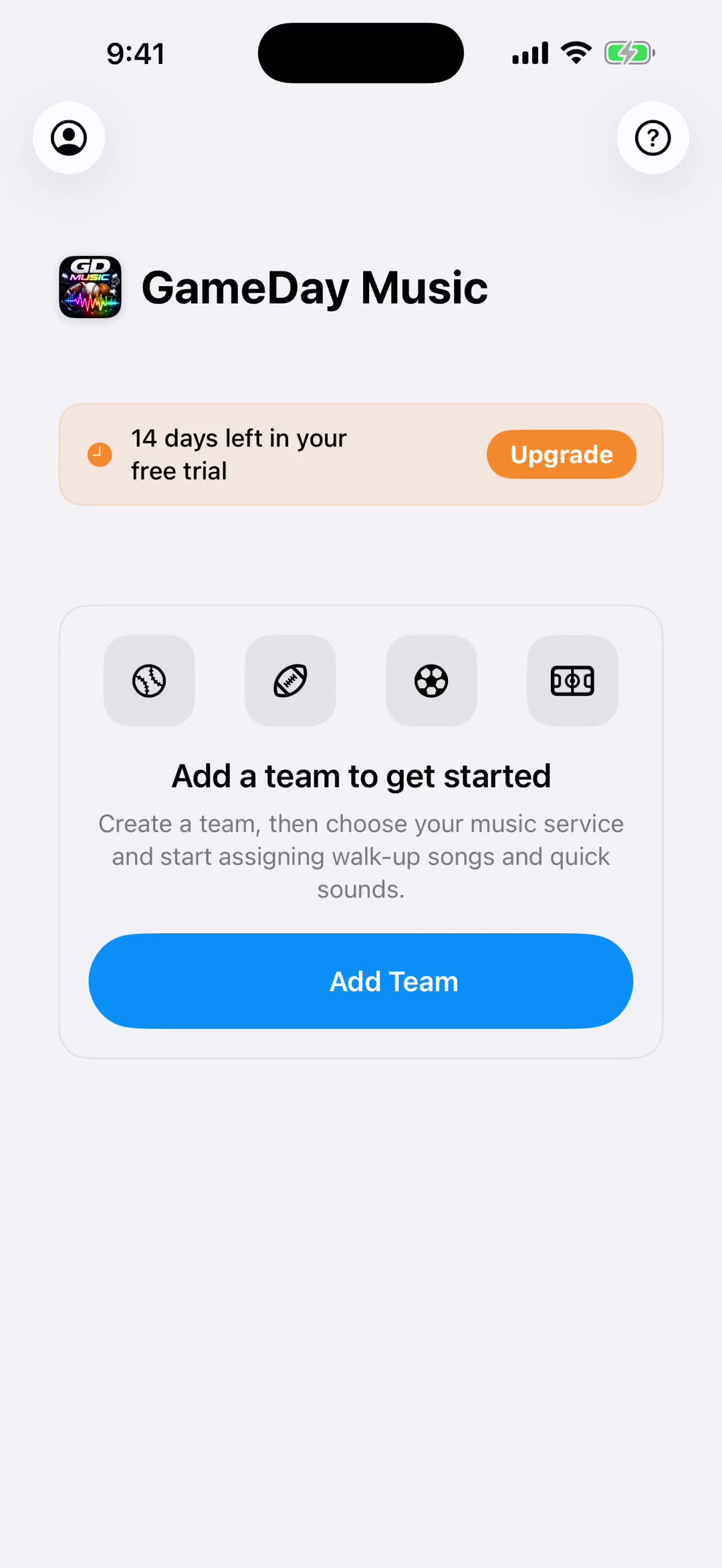
Golf does not have a game day. It has a round, and the app is built that way. There is no board of buttons here and no roster. There is a course, and the music that goes with it.
On the team screen it says The Round rather than Game Day, and Courses sits where a roster would be. Two setup steps instead of four, because there is less to set up.
Open it and the Round tab is your whole list for the day. Play Round starts at the top and works down. The button beside it shuffles the order instead.
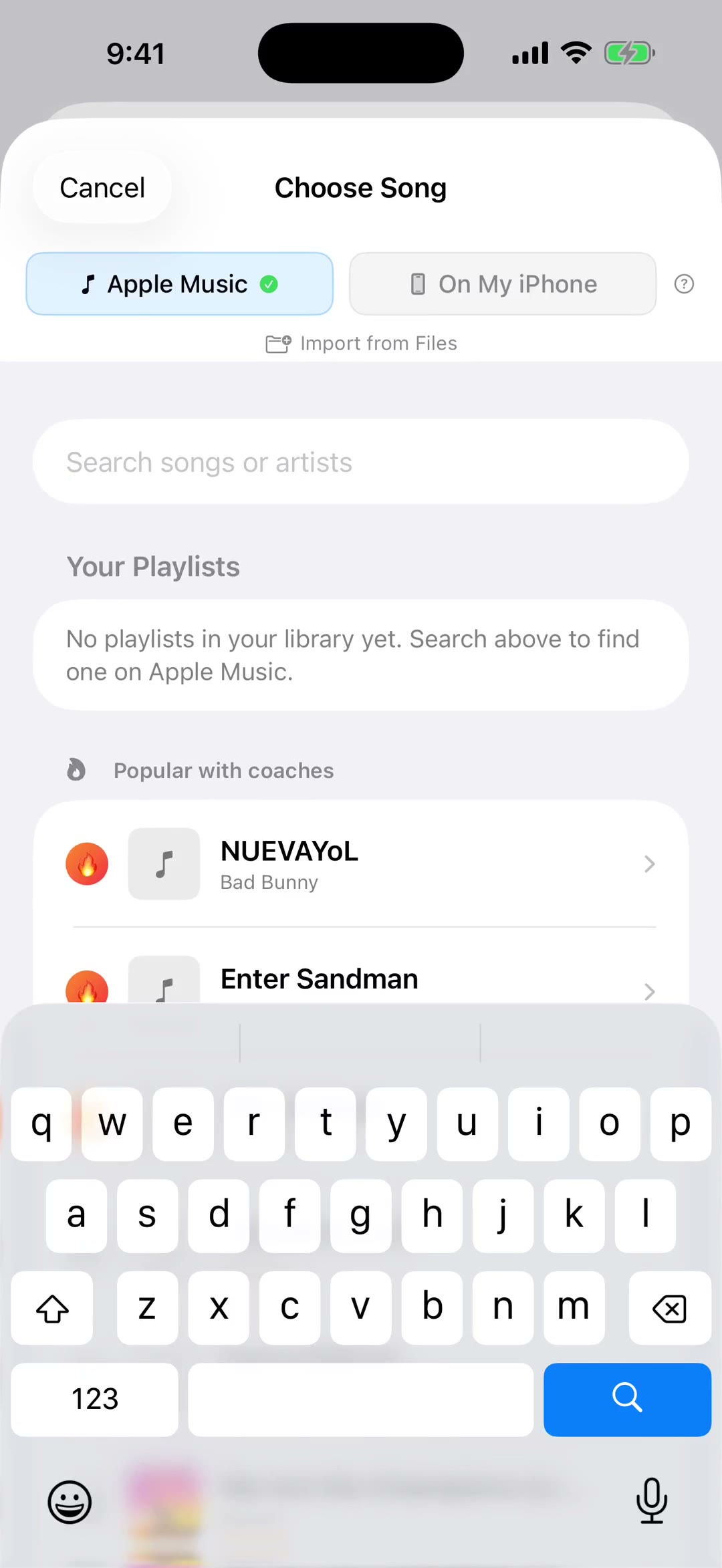
Any song can be pinned to a hole. These two are on the first, this one is on the second. Anything marked Any hole is free to turn up wherever it lands.
Tap a song and it plays, with a ring around the row so you can see which one is out. When it finishes the next one starts on its own, all the way down the list.
The Holes tab takes those same songs and lays them out by hole. A filled flag means that hole has music. Play Hole plays only that one, and Next Hole walks you around the course.
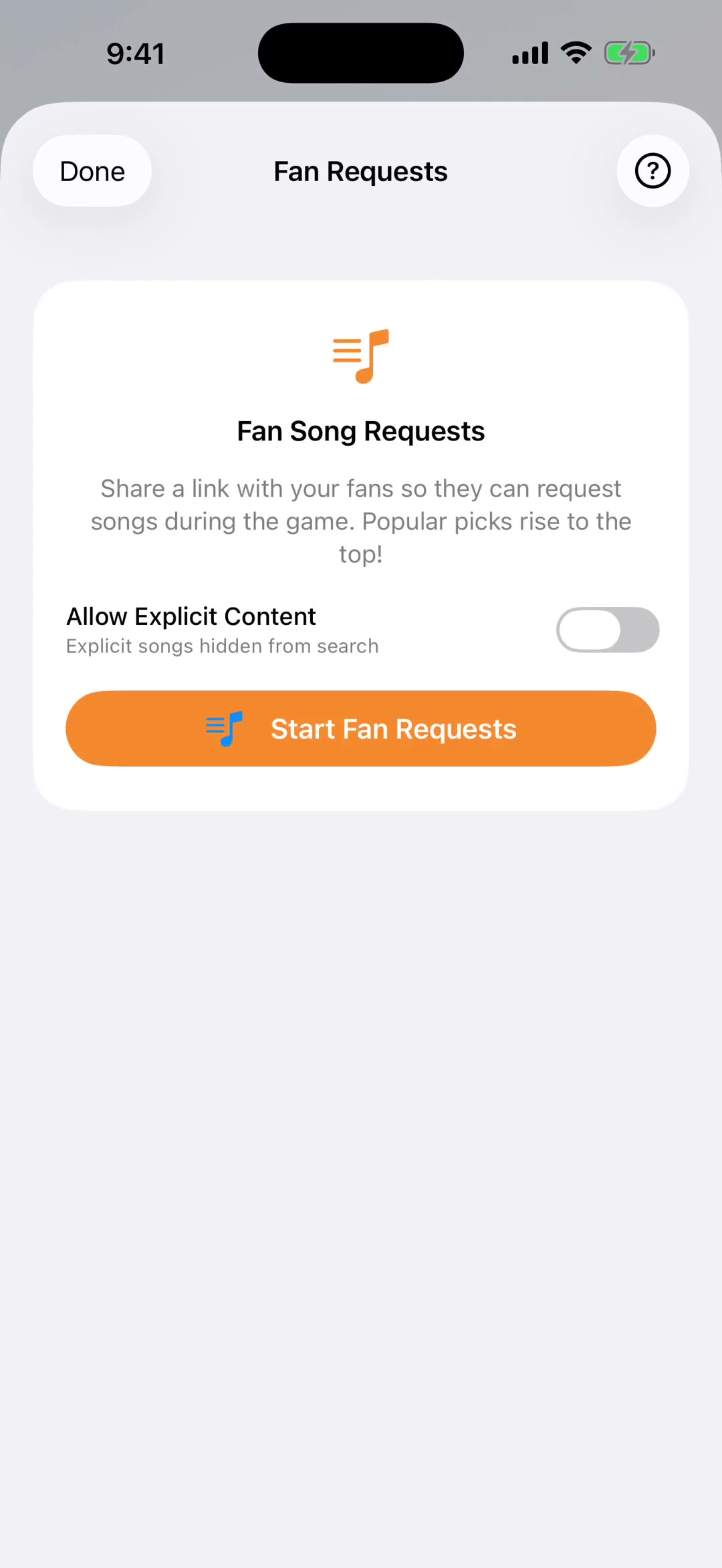
Requests opens a line for the group you are playing with. Share the link and whatever they send lands here, for the whole round.
Courses is for the places you actually play. Add one for each, give it its own songs and holes, and tap a course to make it today's.
And the sound buttons are there for the shots that deserve a reaction. Three are slots you can change by holding one, and More FX opens everything else.