Team Setup
Team branding, roster setup & walk-up songs. This 1:36 walkthrough was recorded on an iPhone with a baseball team, because this part of the app works the same way whatever sport you run. It is a step in the setup path for Baseball, Softball, Football, Basketball, Soccer, Hockey, Lacrosse, Field Hockey, Volleyball, Wrestling, Cheer, Flag Football, Rugby and Cricket. The narration is written out below if you would rather read than watch.
 Baseball
 Softball
 Football
 Basketball
 Soccer
 Hockey
 Lacrosse
 Field Hockey
 Volleyball
 Wrestling
 Cheer
Cheer Flag Football
 Rugby
Rugby Cricket
What the video says
The narration, line by line, as it is spoken in the video.
This is your team home screen. Everything you set up before a game lives here, and one tap takes you live.
The card at the top carries your team's name, sport and logo. If you want to change your colors or your crest, those live in Team Branding, under the gear in the corner.
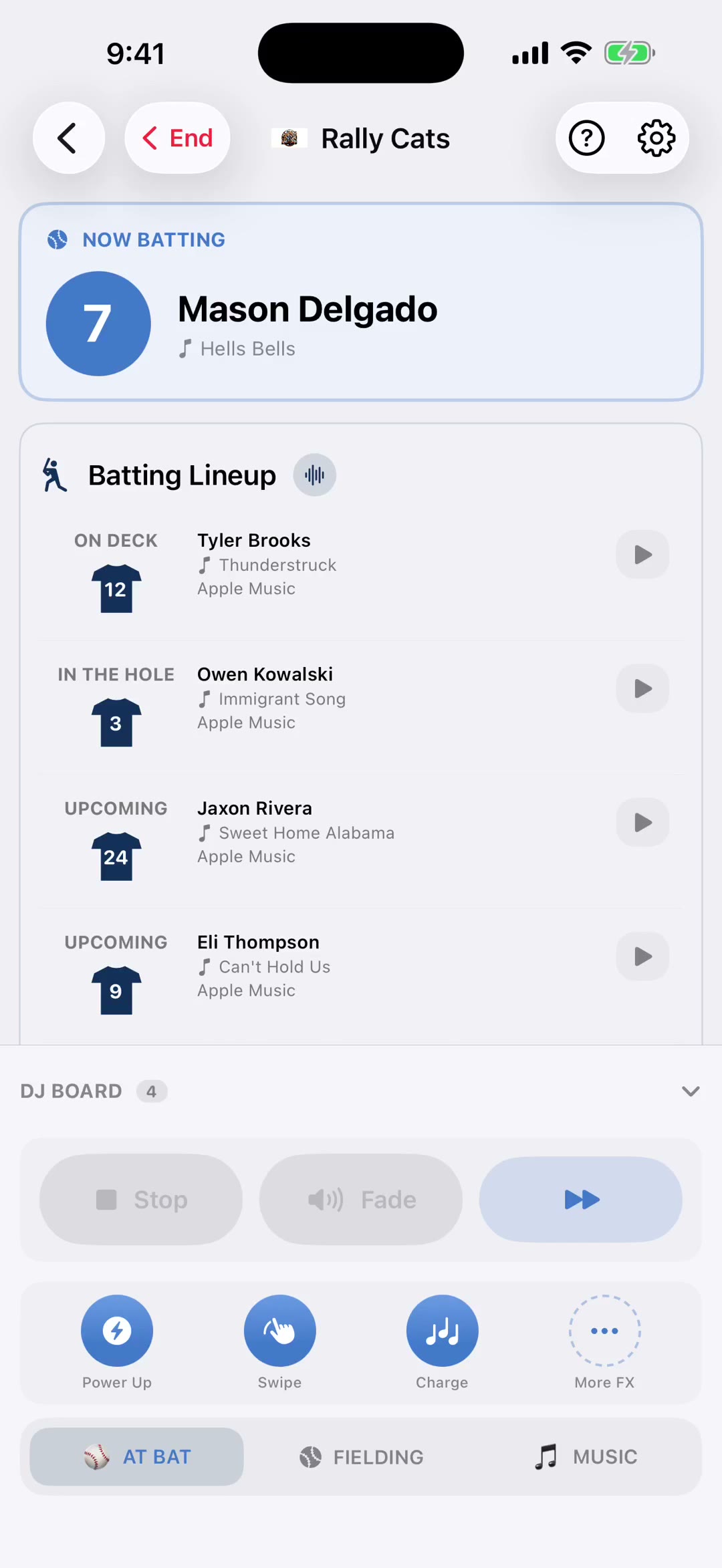
Game Day is the big one. It opens the board you run the whole game from — your lineup, your DJ Board and your music, all in one place. That's the screen you'll actually be looking at when the game's on.
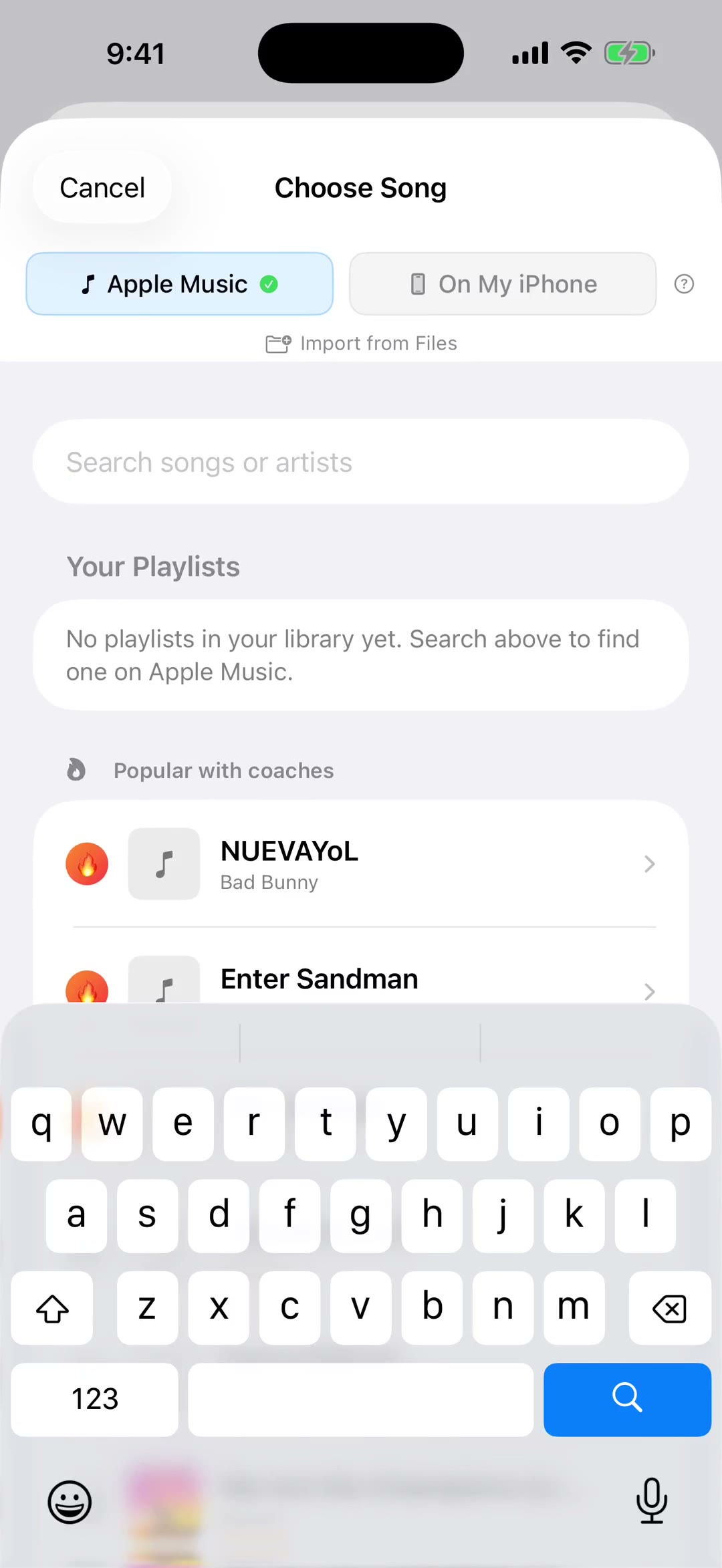
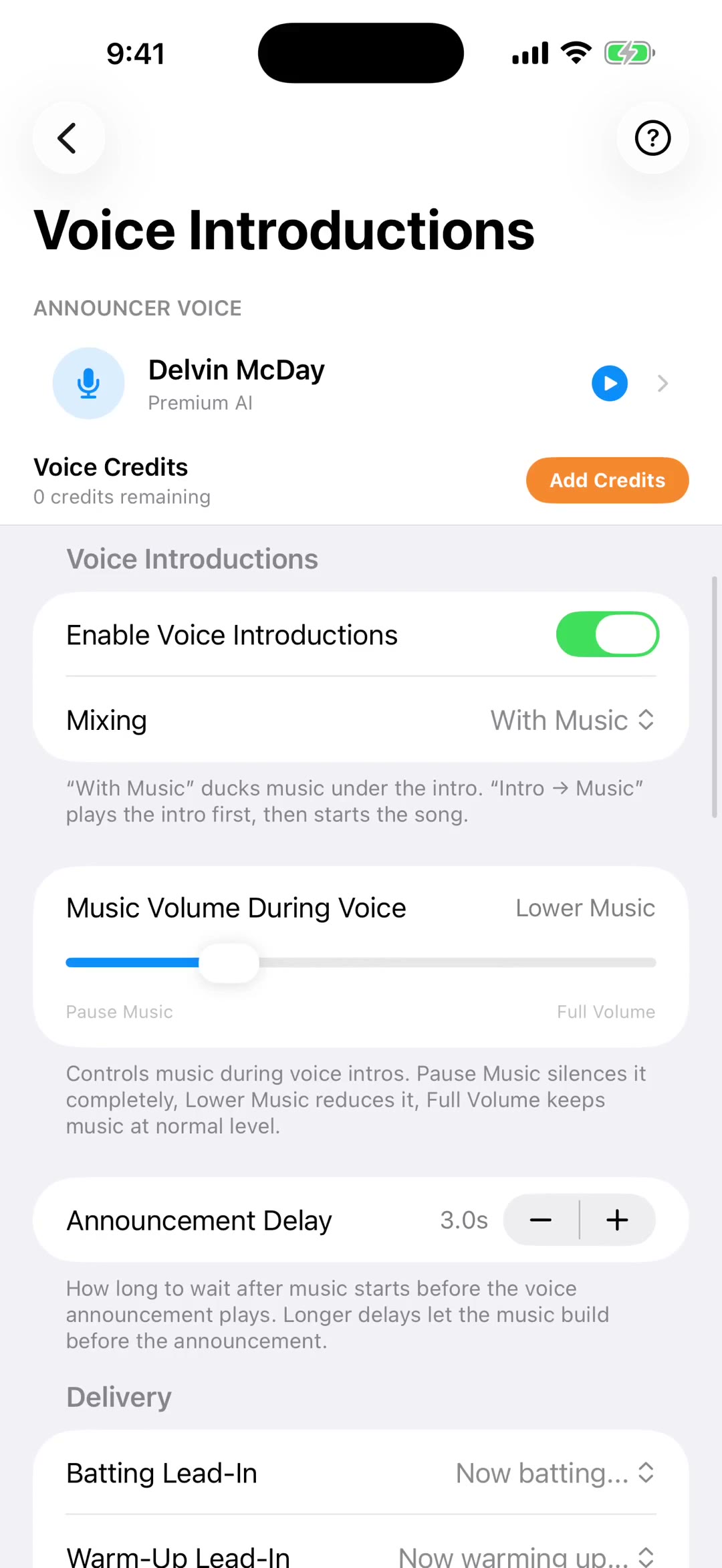
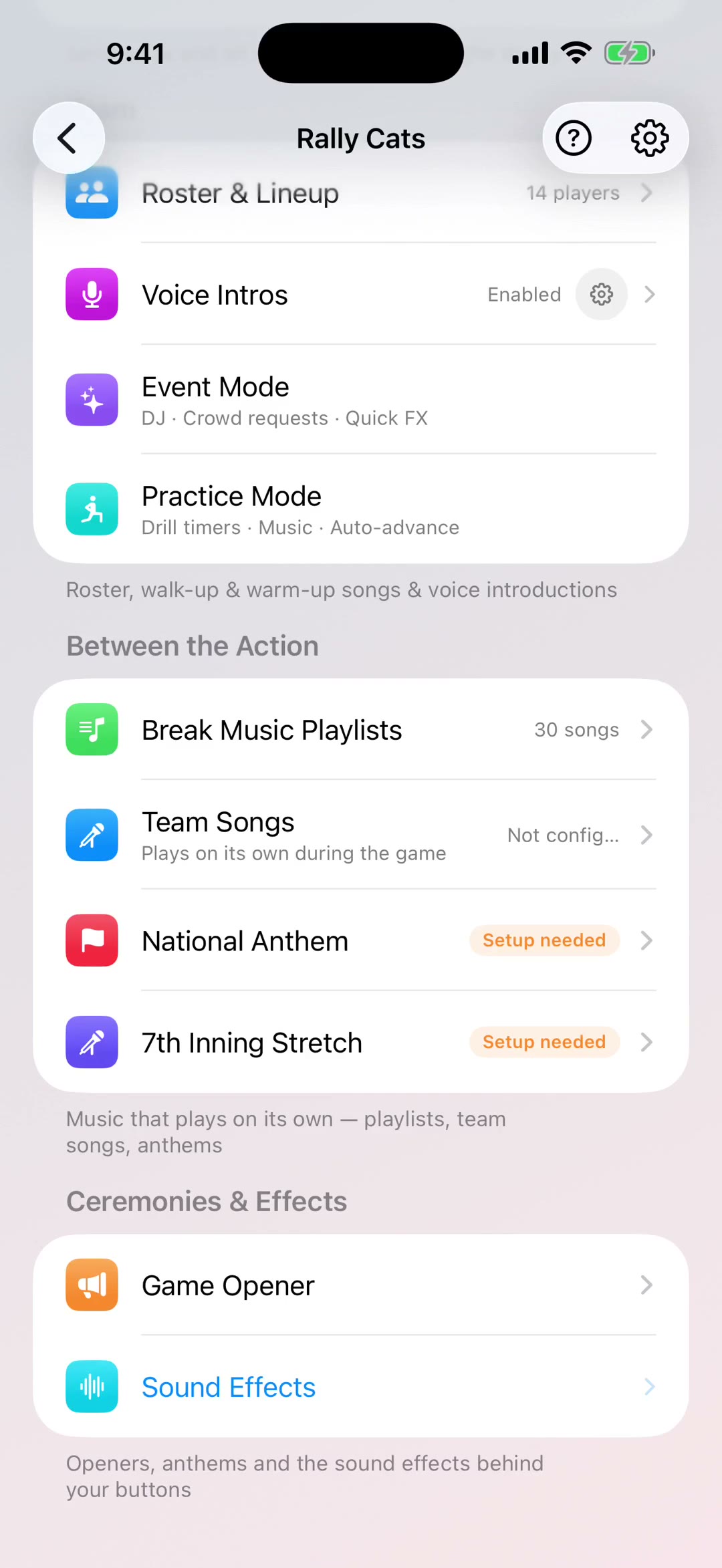
Underneath, the setup checklist tracks what's still missing. Four steps: your roster, your walk-up songs, your voice introductions and your break music. Tap View Checklist to jump straight to whichever one you haven't done.
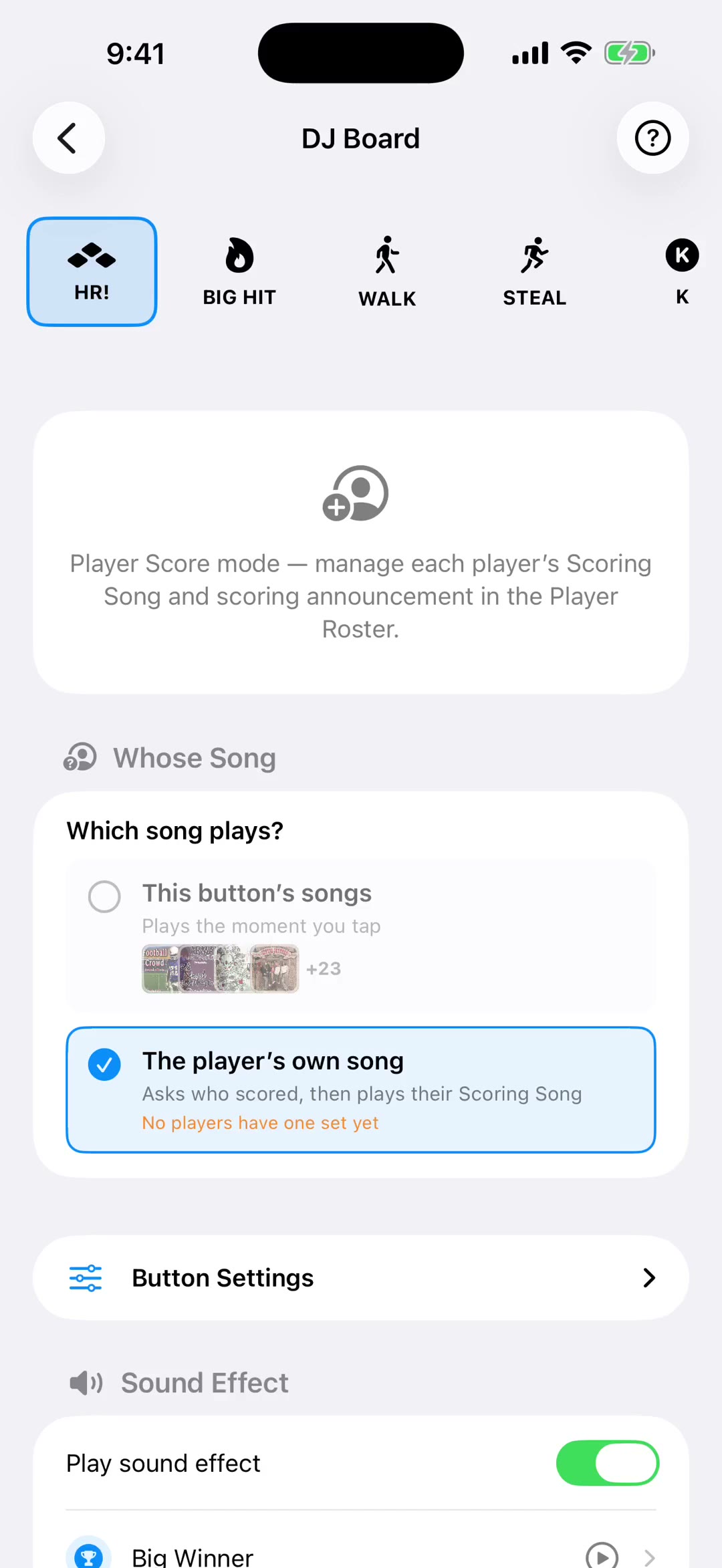
The DJ Board card shows how many buttons are loaded. If it says no songs yet, tap Set Up and give every big moment its own song and announcement.
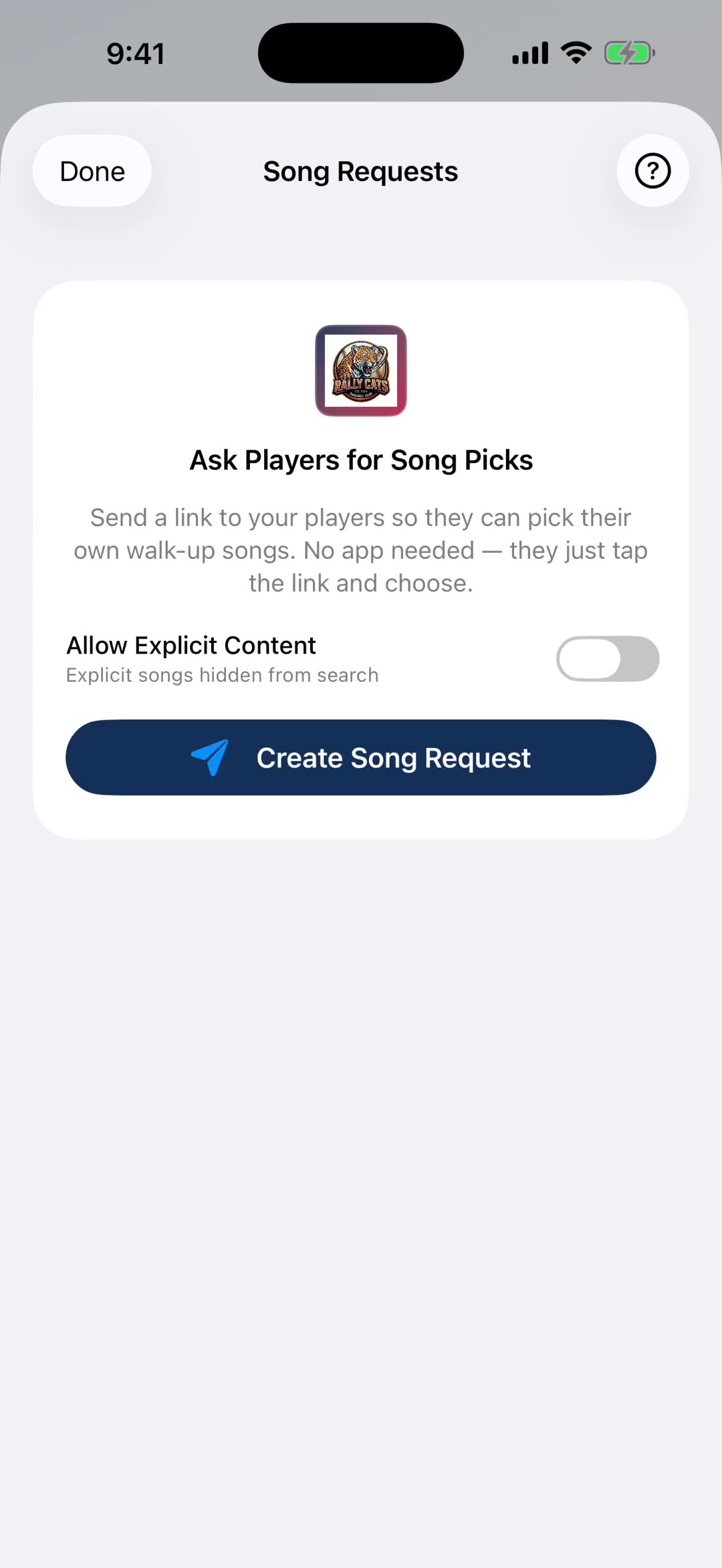
Ask for Songs has two options, and they do different jobs. Fans lets the crowd request songs during the game. Players lets your roster pick their own walk-up music, which saves you chasing fifteen families for song titles.
Further down you'll find Event Mode for team parties, Practice Mode for drills, your game playlists, Mash-Ups for joining song clips into one track, and the Game Opener.
And the gear icon in the corner holds team settings — branding, sharing, voice credits, statistics and everything else.